

^ saved as your server’s prefix, ^warn @Alex Please keep trip planning in #weekend-walks. records the same warning and replies in the channel. Reasons are optional; an omitted reason becomes No reason provided.
Open Moderation → Cases to check the warning and its notifications. Retry a failed notification from its case instead of warning the member again. See Cases.
Revoke a warning
/warnings. Revoking stops it counting toward escalation and keeps its history. Case administration also offers warning edit, rank and clear controls when the warning’s status allows them.
Warning escalation
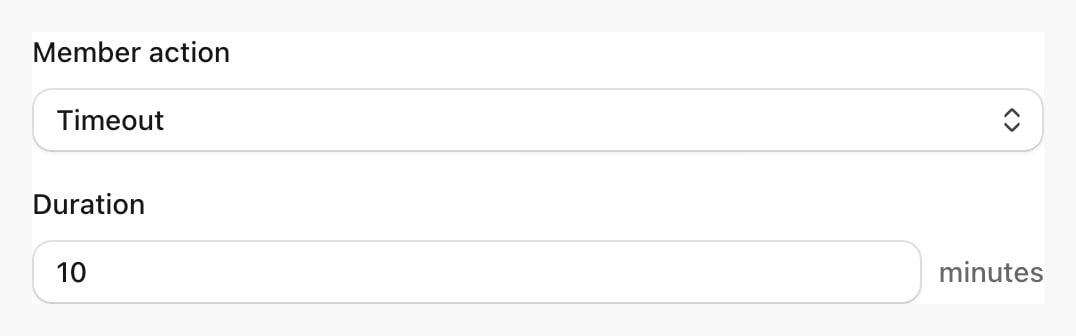
Open Protection overview → Warning escalation. For example, you can time out a member for ten minutes when they reach three active warnings.1
Choose the threshold
Select Apply the configured member action and set Active-warning threshold to 3.
2
Choose the response
Select Timeout and a ten-minute duration. You can instead choose another available member
action. pup needs the Discord permission and role position for that action.
3
Decide which warnings count
Set warning expiry to seven days if you want older warnings to stop counting. Leave Further
warnings off to avoid repeating the response for every warning at or above the threshold.
4
Save
Save the form. Changing these settings never replays old warnings. Check the case after a new
warning triggers the threshold.
Rule warning shortcuts
In Moderation → Settings, save a shortcut such asrule7, its title, a rule-message link from this server, one to ten destination channels and a warning reason. Select Enable this warning shortcut when it should be available.
With ^ as the saved prefix, reply to a member’s message with ^rule7, or use ^rule7 @Alex. Mention exactly one member; a bare ID is not accepted. The warning uses the saved reason and counts toward escalation. Its case keeps the rule details used at that moment.
The optional Public message controls the reminder. Insert @Member, Rule link and #Channels with the formatting controls. An empty message uses “@member, please check Rule title.” with the rule link. It never exposes the private warning reason.
pup deletes the command and posts one reminder. It needs Manage Messages, access to the rule and channels the member can view. If the reminder fails, check the warning’s case before trying again. Disabling a shortcut also stops its pending reminders.