

Set up a filter
1
Choose its scope
Select the channels and members to check, then review exemptions. Protection
responses explains how the selections combine.
2
Start with Monitor
Set the thresholds below and choose Monitor. Review its matches before enabling an automatic
response.
3
Choose a response
Select Take action, choose the message and member actions, then save.
4
Review a match
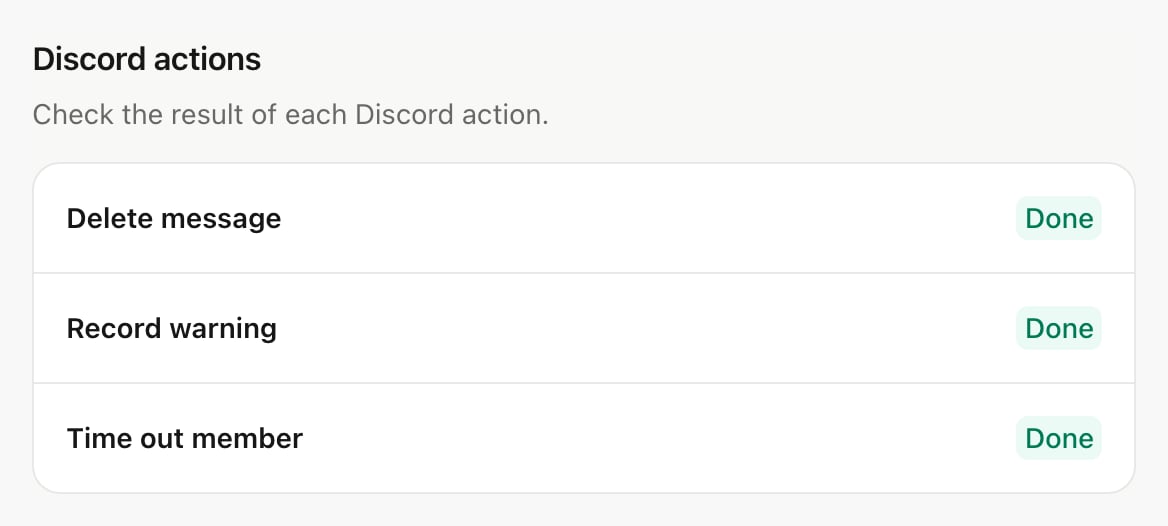
Open the recent matches or All matching incidents. The incident shows which steps completed
and any failures. Correct the reported cause before retrying a failed step.
Message spam
Set a threshold and rolling time window for Message burst, Duplicate messages, Link rate, Repeated content and Sustained rate. Choose whether counts follow a member in one channel or across the server. Link rate counts how often links are posted. Use Phrases and links to block particular hosts.Invite spam
Set Invite burst, Repeated invite and Invite destination rate thresholds and windows. Add allowed invite codes to Approved invite destinations. pup recognizesdiscord.gg/code, discord.com/invite/code and discordapp.com/invite/code, including invites split up with spaces.
Excessive uppercase
Set Uppercase threshold, Minimum letters and Minimum message length. Short messages below either minimum are skipped. The filter counts letters with an uppercase or lowercase form; languages without letter case are unaffected.Repetition and Zalgo
Set Maximum repeated content, Maximum combining marks and Minimum message length. Combining marks are accents and other marks attached to a character; repeated marks can make text difficult to read. Choose Ignore code blocks where members share code. Use Exempt language codes for writing that needs a different treatment, such asja for Japanese.
Emoji and sticker spam
Set Custom emoji limit, Unicode emoji limit, Sticker limit, Reaction count limit, Reaction rate and Reaction window separately. Reaction matches go to review and do not delete the message being reacted to. Use channel, role or member exemptions where the server’s usual expression needs a different limit. The accessibility-pattern setting does not identify a member’s accessibility needs.Wall text
Select Protected channels first. Each selected channel gets Characters, Lines and Fragments limits. Leave a support channel out of that list to exempt it. Set Message count and Time window for messages split into fragments, and choose whether to Ignore code blocks. An empty protected-channel list checks no channels, including when the general scope says all channels.Files
Attachment spam counts files attached by one member. Set Attachment threshold and Time window. A match occurs when the count reaches the threshold. Dangerous files checks risky extensions, media types and deceptive filenames. To restrict attachments further, add Allowed file extensions, without a dot:Mentions
Mention spam counts member, role,@everyone and @here mentions by one member. Set Mention threshold and Time window. Exempt members and channels are skipped.
For supported scopes, mention spam can use Discord AutoMod.